ADHD email management comes down to 4 habits: cut what comes in, check at set times, turn real requests into tasks, and keep a template for every email you dread. Each habit targets a specific executive function skill, which is why generic inbox advice keeps failing people who manage email with ADHD.
The pile isn't a personal failing. The CDC estimates 15.5 million U.S. adults had a current ADHD diagnosis in 2023, and 55.9% of them were diagnosed as adults, so more than half found out after high school.
And the inbox got heavier. Microsoft's June 2025 Work Trend Index report found the average worker gets 117 emails a day, most skimmed in under 60 seconds, and is interrupted every 2 minutes during core work hours by a meeting, email or chat.
I won't rank email apps by price here. Prices change too often to print, and the app matters less than the rules you run it on.
What Is ADHD Email Management?
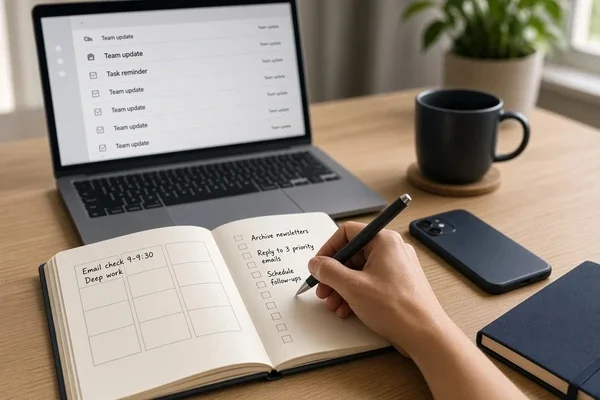
ADHD email management is a set of inbox habits built around executive function differences. It limits how much email arrives, sets fixed times to process it, moves every request into a task list with a date, and uses saved templates so replies start from a draft. The goal is fewer decisions per email.
Standard inbox advice assumes you'll notice new mail, remember to check back, start replies on time and feel calm opening a message. ADHD makes each of those 4 harder, so a system for managing email with ADHD has to carry more of the load.
Why Does Email Feel So Hard With ADHD?
Email hits attention and emotion at the same time, and ADHD affects both. Each message is a small interruption, and each one you don't answer adds a little dread.
Alerts make the attention side worse for everyone. In a 2016 study, Kostadin Kushlev, Jason Proulx and Elizabeth Dunn had 221 university students spend 1 week with phone alerts on and 1 week on Do Not Disturb. During the alert week, students reported more inattention and more hyperactivity, and both effects were medium-sized. These students weren't recruited for ADHD, and the authors say plainly that alerts don't cause it. For a reader who has ADHD, that load lands on top of symptoms already there.
The emotional side does more damage.
A 2020 meta-analysis in BMC Psychiatry pooled 13 studies covering 2,535 people and found adults with ADHD had far more trouble managing emotions than adults without it, a gap statisticians would call large.
That gap drives a loop. An email from your manager lands late in the day, you read the first line, feel a jolt of "what did I do wrong," and close the tab. Tomorrow the email is older, so opening it feels worse, and by Friday you're avoiding the unread count itself.
Some people call that jolt rejection sensitivity. It isn't a formal diagnosis, and the fix is the same either way. Make opening the message cheaper.
The 6 Executive Function Skills Your Inbox Tests
Executive function is the set of mental skills that plan, start, track and finish work. An ADHD inbox tests 6 of them at once, and the way you get stuck points to the one that's struggling. Our coaching works on 4 of them directly, from task initiation and working memory to time management and organization.
Most email advice treats every failure as an organization problem and hands you more folders. That's the right fix for 1 skill out of 6.
If you won't open the inbox at all, emotional regulation is the bottleneck. Open it with a 10-minute timer and read only subject lines on the first pass.
Reading the same email over and over without replying is a task initiation problem. Shrink the first step to typing 1 sentence, even a clumsy one.
When a read email vanishes from your mind, working memory dropped it. Move every request into a task list the same day.
A quick check that eats the whole morning points to time management, and often to time blindness. A visible timer with a hard stop does more than discipline.
Not knowing what to do with each message is the organization problem, the only one folders can help. Use 2 labels, Reply and Waiting, and stop there.
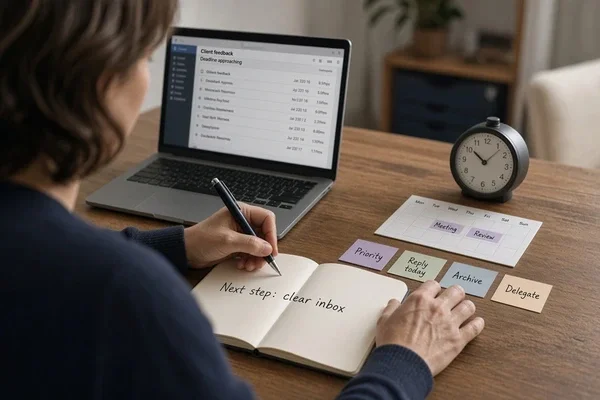
Losing the thread of your real work after a quick check is cognitive flexibility. Write your next step on paper before you open email, so you can find your way back.
Find your top 2 before you buy anything. My guess is emotional regulation makes your list, because it's the one generic advice never mentions.
3 Ways to Cut Inbox Overload
Cut overload in a set order. Shrink what arrives first, reset the backlog second, and put email on a schedule third.
1. Cut the Inflow Before You Sort Anything
The fastest win is fewer emails, and Gmail now handles most of the work for free. Google rolled out a Manage subscriptions view starting July 8, 2025, on the web, Android and iPhone, and it lists your mailing lists by how often each one emails you, with an unsubscribe button beside each. A short session there beats a month of filing.
Skip outside unsubscribe apps that ask for full inbox access. In 2019, Unroll.me settled with the FTC after the agency said it told users it wouldn't "touch" their personal emails while it shared their e-receipts, which can include names, addresses and purchases, with its parent company.
Now the advice I disagree with.
A popular tip says to run 3 email accounts, 1 each for work, personal and shopping, and to check the low-priority one weekly. For an ADHD brain, a weekly inbox turns into a never inbox, and that's where the dentist bill and the school form go to die.
Use 1 inbox and plus addressing instead. Add a plus sign and a word to your Gmail address, like yourname+shop@gmail.com, and the mail still lands in your main inbox. Then build a filter that labels anything sent to the +shop address and skips the inbox. 1 login, 0 forgotten accounts. Outlook calls filters rules, and they work the same way for receipts, newsletters and app alerts.
College applications are where this pays off for teens. Building a college list comes before any SAT or ACT prep in our College Kickstarter Course, and the day a student starts that list is the day to set up a +college address and label for admissions mail.
2. How Do You Reset an Inbox With Thousands of Unread Emails?
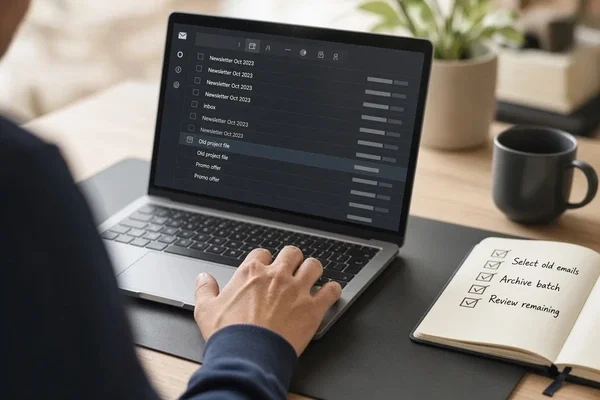
Archive everything older than 30 days in 1 move, then pull back the messages that still matter. Archiving isn't deleting, since every email stays searchable in All Mail, so the reset is reversible. A reset that feels permanent is one you'll never start.
In Gmail, search in:inbox older_than:30d.
Select all, click the link Gmail shows to select every matching conversation, and archive.
Search for the senders who can hurt you if ignored, like your manager, school, bank or landlord, and move anything still open back to the inbox.
Send 1 short note for each overdue reply, using the late-reply template below.
Turn on the filters from step 1 today, before new mail rebuilds the pile.
3. Give Email 2 Fixed Windows a Day
Check email at 2 or 3 set times a day, with notifications off in between. The research on batching is mixed, and the mix tells you what to do.
In a 2015 experiment, Kostadin Kushlev and Elizabeth Dunn had 124 adults check email 3 times a day for 1 week and as often as they liked for another. Checking fell from about 12.5 times a day to 4.7, and daily stress went down, though weekly stress didn't change.
Gloria Mark of UC Irvine and a Microsoft Research team found something different in 2016. They logged 40 information workers at a large company for about 12 days, and the average worker checked email 77 times a day and spent 1 hour and 23 minutes in it. More time in email meant lower productivity and more stress on heart rate monitors, but batching didn't lower stress.
I trust Kushlev's study on how often to check, because it was a controlled experiment, and Mark's on total time, because it tracked real behavior. So scratch the goal of "check less." The better target is fewer total minutes in email, bunched so they don't break up your real work.
Pick 2 windows, like 11:30 a.m. and 4 p.m., and set a 25-minute timer for each. Don't open email before your first real task. Microsoft found 40% of people online at 6 a.m. are already reviewing email for the day's priorities, which hands the morning to someone else's list. Inside each window, use David Allen's 2-minute rule from Getting Things Done. If a reply takes under 2 minutes, send it now. Anything longer becomes a task.
Turn off mail notifications on your phone and laptop, and give your phone number to the 1 or 2 people who need to reach you fast. This matters more when you're working from home, where nothing outside the screen ends the workday. Students can drop both windows straight into their class schedule.
The ADHD Email Management Tools Worth Setting Up
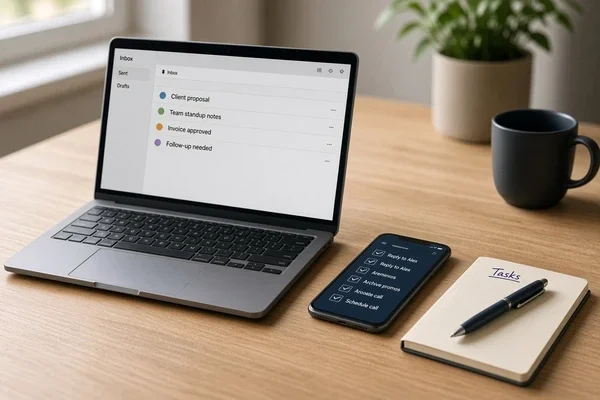
Start with the free tools already inside Gmail or Outlook, and add a paid tool only after a free one has failed you for 2 straight weeks.
Gmail's built-in tools cost nothing. Manage subscriptions handles unsubscribing, filters and plus addressing sort what's left, and Snooze hides an email until the date you pick, then puts it back at the top of your inbox. Anyone already on Gmail should start here.
Since January 2026, Gmail's Help Me Write drafting tool has been free for all users, along with AI summaries of long threads, starting in the U.S. in English. It suits people who stall on the first sentence, as long as you read every draft before sending, because it sounds like nobody in particular.
Outlook's rules do what Gmail filters do. Once you turn on the Flagged email list in Microsoft To Do, any email you flag in an account Microsoft hosts shows up there as a task. If you live in Outlook at work, start here instead.
SaneBox is paid after a free trial. It learns which senders matter, moves the rest into separate folders, and it works with Gmail, Microsoft 365, iCloud and any IMAP account. It's worth it for a busy work inbox and overkill for a student with a light one.
Boomerang for Gmail has a free Basic plan. Its Inbox Pause keeps new messages out of sight until a time you choose, though custom pause schedules need the paid Pro plan, and it suits people who refresh the inbox out of habit.
Text Blaze and TextExpander both offer free plans with paid upgrades. Type a short code like /late and a full reply appears. That's worth the setup if you send the same replies every week.
Todoist has a free plan, and each project gets its own email address. Forward a message there and the subject line becomes the task name, a good fit if you already keep a to-do list outside email.
Set up 1 tool a week, at most. Install 3 at once and you'll likely abandon all 3.
4 Mindset Shifts That Make Replying Easier
Replying gets easier when "clear and sent" becomes the bar for a good email. Most stalled replies stall on tone, while the content is usually ready.
1. Build 5 Templates for the Emails You Dread
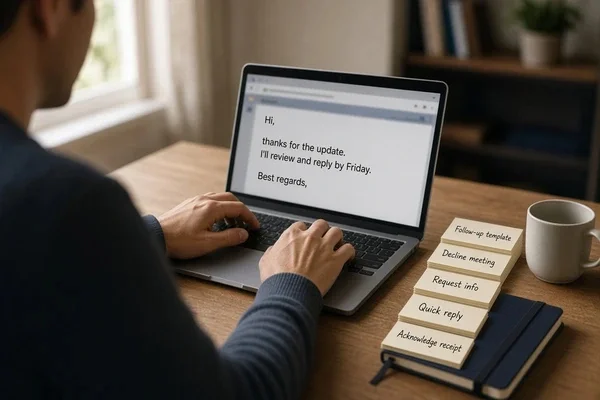
Templates turn a blank page into an edit, and editing is easier to start than writing. Writing asks you to plan, hold details in mind and manage the reader's reaction all at once, and a template does the planning for you.
A late reply can be 2 sentences. "Sorry for the slow reply. The answer is yes, and the file is attached."
Asking for more time works best with a specific date. "I can have this to you by Thursday at noon. Does that still work?"
Saying no lands softer with an alternative. "I can't take this on this month, but I can review the draft in March."
A holding reply buys time without a full answer. "Got it, thanks. I'll reply in full by Friday."
Moving a meeting needs only 1 new option. "Something came up on my end. Could we move to Wednesday at 2 p.m.?"
Students can add a 6th for extensions, such as "I'm behind on the lab report and want to turn in good work. Could I have until Monday at 9 a.m.?" Save them in a text expander or Gmail's templates so each one is 2 keystrokes away.
2. Is Inbox Zero Realistic With ADHD?
As a message count, no.
Merlin Mann coined Inbox Zero in 2006, and the zero he meant was the amount of time your brain spends in your inbox. The empty-inbox version is the one that spread.
I'd aim for 0 surprises instead, meaning every email in the inbox is either new since your last window or has a next step you already know. A long list of known emails is fine. Even a short list of unknown ones will keep you up at night.
3. Short Replies and Phone Calls Count
A 2-line reply sent today beats a perfect one sent next week.
If you've opened the same email 3 times without answering, call or message the person instead, because a short call can settle what a long draft drags out.
Perfectionism hides here as "I want to get this right." Put your response window in your signature or say it in a meeting. "I answer email within 1 business day" turns a vague expectation into a promise you can keep.
4. How Do You Reply Late Without Making It Worse?
Apologize in 1 sentence, answer the question, and name the next step. The long apology is the trap, since 3 paragraphs about how busy you've been make the reader work harder and make the next late reply even harder to send.
"Sorry this took a week. The answer is yes, and I'll send the file by Tuesday." That's the whole email.
When a real answer will take days, send the holding reply from your templates now. Then Snooze it in Gmail or flag it in Outlook, so the follow-up comes back to you on a set date.
Turn Emails Into Tasks Before They Disappear
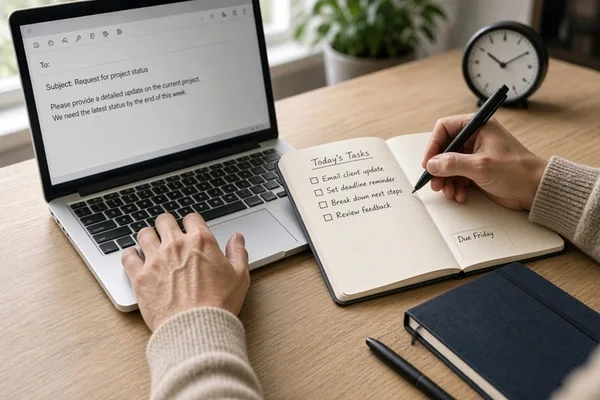
Any email that needs more than 2 minutes of work belongs in your task list, with a date, the same day you read it. Leaving it in the inbox means trusting working memory, which ADHD often shortchanges.
Pick 1 task list and use only that one.
Move the email in. Flag it in Outlook so it lands in Microsoft To Do, forward it to a Todoist project's address, or copy the request into whatever list you use.
Rename the task after the next physical step. "Reply to the email" is vague, while "Send 2 possible meeting times" is a task.
Give it a date, even a rough one.
Check the list at the same time every day.
Parents run into this with school mail. If a tutor emails that your child needs more vocabulary practice before the ISEE, the task is a short daily round with ISEE vocabulary flashcards, written into the list with a time.
Once the task exists, the email has done its job. In Gmail, Snooze is the light version if you'd rather not run a separate app.
Keep the Inbox Clean(ish) With a 10-Minute Routine
A 10-minute pass before you log off and a 20-minute review on Friday keep a reset from sliding back into a backlog.
During the daily pass, ask 4 questions of every new email. Can I answer it in 2 minutes? Does it become a task? Does someone else own it? Can I archive it?
On Friday, open your Waiting label, nudge anyone who owes you a reply, and archive what's finished. Every month, rerun the 30-day archive search from the reset.
Search finds any email in seconds, so stop building folders for messages you'll never reopen.
Expect the routine to break during a rough week. Restart with the 10-minute pass instead of a new system, because a new system is a reset with extra steps.
When Does Coaching Help With ADHD Email Management?
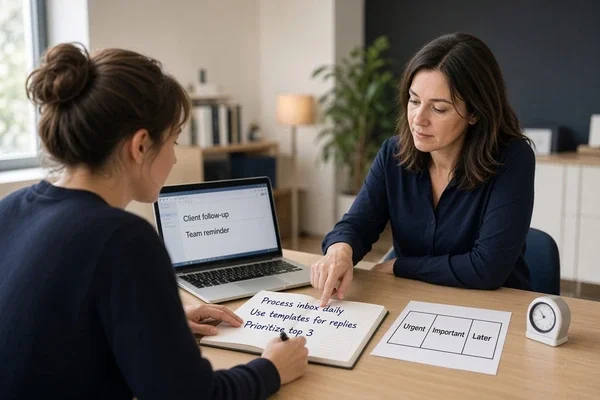
Coaching helps when you've tried a system like this for 2 weeks, restarted it, and watched it collapse again. It also helps when missed emails are already costing you at work or school.
The Ladder Method was founded in 2008 by Candice Lapin in Los Angeles and coaches middle school, high school and university students as well as adults. Coaching happens in person in Los Angeles, New York, Chicago, Dallas and Austin, and virtually worldwide.
It starts with a free consultation about your goals, learning style and daily challenges. Each client is paired with a coach they connect with, and the first 3 sessions work as an ongoing assessment. Our coaching programs for adults build organization, time management and planning habits for people in small businesses, large companies and other organizations.
Coaching isn't therapy, and it doesn't diagnose anything. If you're unsure whether you need a coach or a therapist first, ask during the free consultation.
Book a consultation and bring your unread count. Once you stop asking which app to buy and start asking which skill broke, ADHD email management gets easier. Fix that skill first.
Frequently Asked Questions
Is ADHD email management different from regular inbox advice?
Yes. Regular inbox advice assumes you'll remember to check, start replies on time and feel calm opening messages, so ADHD email management moves that work into the system with fewer incoming emails, set checking windows, reply templates and a task list.
How often should you check email with ADHD?
2 or 3 set times a day, with notifications off in between, is a sound starting point. In a 2015 experiment with 124 adults, checking email 3 times a day instead of freely cut daily checks from about 12.5 to 4.7 and lowered daily stress. Total time matters too, since a 2016 study of 40 office workers linked more daily time in email to lower productivity and higher stress.
Why do people with ADHD avoid their email?
Avoidance usually starts with emotion. A 2020 meta-analysis of 13 studies covering 2,535 people found adults with ADHD have far more trouble regulating emotions than adults without ADHD, so a vague or harsh-sounding email can set off dread. Each day an email sits unopened makes it harder to open, which is how an unread count becomes something you avoid on its own.
What is the best email app for ADHD?
For most people, the best app is the one they already use, set up well. Gmail added a free Manage subscriptions view in July 2025 that lists senders by how often they email you, and Outlook can send flagged emails to Microsoft To Do as tasks. Paid tools like SaneBox make sense only after the free settings have run for 2 weeks.
How do you catch up on thousands of unread emails?
Archive everything older than 30 days in 1 step. In Gmail, search in:inbox older_than:30d, select every matching conversation and archive it, since archived mail stays searchable. Then search for the senders who matter, like your manager, school or bank, and move anything still open back to the inbox. Turn on filters the same day so the backlog doesn't rebuild.
Do email notifications make ADHD symptoms worse?
In a 2016 study of 221 university students, a week with phone alerts on raised inattention and hyperactivity symptoms compared with a week on Do Not Disturb. The authors stress that alerts don't cause ADHD, but turning off mail notifications removes a steady source of interruption.
Can coaching help with ADHD email management?
Yes, when a self-run system keeps collapsing or missed emails are costing you at work or school. A coach works on the skills underneath, such as task initiation, working memory and time management, and adds outside accountability. The Ladder Method starts with a free consultation and pairs each client with a coach they connect with.